Initial Movies UI
Create initial screens
Let's create a starter user interface!
In this step, we'll create placeholder screens and simple navigation.
To implement our navigation, we need to
- Define state representing our screens
- Add the Android Navigation 3 dependencies
- Add code for the back stack, display of the proper screens, and pushing new screens
Navigation setup
Let's take care of our dependencies for the Navigation 3 library.
We add navigation dependencies in the version catalog.
show in full file gradle/libs.versions.toml
[versions]
// ...
kotlin = "2.4.10"
composeBom = "2026.08.00"
navigation = "1.1.7"
material3AdaptiveNav3 = "1.3.0"

[libraries]
// ...
androidx-compose-material3 = { group = "androidx.compose.material3", name = "material3" }

androidx-navigation3-runtime = { module = "androidx.navigation3:navigation3-runtime", version.ref = "navigation" }
androidx-navigation3-ui = { module = "androidx.navigation3:navigation3-ui", version.ref = "navigation" }
androidx-material3-adaptive-navigation3 = { group = "androidx.compose.material3.adaptive", name = "adaptive-navigation3", version.ref = "material3AdaptiveNav3" }

[plugins]
// ...
Sync the project via the banner or the elephant icon on the toolbar so the dependency variables will be available in the build scripts.
Next, we need to use these dependencies in the build. Update the app/build.gradle.kts file
to include the navigation dependencies:
show in full file app/build.gradle.kts
// ...

dependencies {
    implementation(libs.androidx.navigation3.ui)
    implementation(libs.androidx.navigation3.runtime)
    implementation(libs.androidx.material3.adaptive.navigation3)
    implementation(platform(libs.androidx.compose.bom))
    implementation(libs.androidx.activity.compose)
    // ...
}
Sync the project again so the new dependencies will be available in your code.
We'll come back to the navigation code once we've defined our screens.
Screen data setup
First, we create screen state using a Kotlin sealed interface. Sealed interfaces limit possible
implementing classes or objects to only those defined in the current module. This is useful in
applications or libraries because they know exhaustively which possible subclasses exist, and, in
the case of a library, no external users can create new subclasses or implementations.
We create a "screens" subpackage containing a Screens.kt file:
show in full file app/src/main/java/com/androidbyexample/movies/screens/Screens.kt
// ...
import kotlinx.parcelize.Parcelize

sealed interface Screen: Parcelable

@Parcelize
data object MovieList: Screen

@Parcelize
data class MovieDisplay(val movie: Movie): Screen
Note
The sub-packages are here only for organization; you don't really need them. We're creating a single file to hold all of these screen definitions together. In Kotlin, you can define multiple public types inside a single file (vs Java, where you can only have a single public type per file.)
We're using a data class to represent a movie-display screen. Data classes automatically
generate equals(), hashCode(), toString(), and some other interesting functions for all
properties defined in their primary constructor. We'll use this to hold onto the movie
that was selected.
Holding onto the movie is not a good idea. If it changes in the data store, we won't be able to automatically load the changes in the UI. We'll fix this when we set up our database. For now, we pass the movie itself for convenience, as we're focusing on the user interface in this module.
We use a Kotlin data object for the movie list state. Because the movie list will just
display all movies, we don't need to keep any state (such as a specific movie id) in the screen
instance for it.
Kotlin objects are singletons; you never create instances of them and can access them
globally. We could use a class here (without data) and create instances, but that doesn't
do anything helpful, as all instances would be effectively equal. The data keyword adds the
same generated functions for the object as it did the class above.
The MovieDisplay and MovieList are marked @Parcelize, so the Kotlin-Parcelize plugin will
generate code to convert them to a simple binary form. This will allow Android to save/restore
their data across application hibernation.
Placeholder screens
Now let's define the placeholder user interface screens (UIs). We define simple movie display and movie list UIs as Composable functions that just display text.
Note
When you define Composable functions, you should almost always pass and respect a Modifier.
(The only time I don't pass a Modifier is when defining the top-level user interface function.)
This allows callers to tweak the appearance and behavior of the Composable you're defining.
For example, in this application, we start with a top-level Scaffold that places other
Composables on the screen. The Scaffold passes a parameter that defines the padding you
must use in your main component, which you can pass along using Modifier.padding().
Modifiers should always be the first optional parameter to a Composable function, and usually
default to Modifier.
Warning
Be sure to import androidx.compose.ui.Modifier and NOT java.lang.reflect.Modifier!
We're placing these Kotlin files under the "screens" sub-package.
show in full file app/src/main/java/com/androidbyexample/movies/screens/MovieDisplayUi.kt
// ...
import com.androidbyexample.movies.data.Movie

@Composable
fun MovieDisplayUi(
    movie: Movie,
    modifier: Modifier = Modifier,
) {
    Text(
        text = "Movie Display: ${movie.title}",
        modifier = modifier,
    )
}
show in full file app/src/main/java/com/androidbyexample/movies/screens/MovieListUi.kt
// ...
import com.androidbyexample.movies.data.Movie

@Composable
fun MovieListUi(
    movies: List<Movie>,
    modifier: Modifier = Modifier,
    onMovieClicked: (Movie) -> Unit,
) {
    Text(
        text = "Movie List",
        modifier = modifier.clickable {
            onMovieClicked(movies[0])
        }
    )
}
Our MovieDisplayUi() composable function takes a Movie as a parameter and emits a single
Text() to temporarily represent the screen. MovieListUi() takes a list of movies and a
onMovieClicked() callback to indicate to the caller that a movie was selected by the user.
For now, we just display "Movie list", and tell the caller that the first movie was clicked. (We'll flesh this out in a moment)
The Navigation Back Stack
The Navigation 3 library allows us to completely manage the back stack ourselves, or use support functions that it provides. We could use
val backStack = rememberNavBackStack(MovieList)
inside a Composable function to manage the stack. This creates and manages a MutableStateList
that contains our screens. If Android decides to hibernate our application (after the user
goes to the home screen or another app), it will save the state of the back stack and reload it
if the user returns. Note that for this to work, our screen data must implement NavKey
as well as be serializable.
But we'd encounter a problem with this approach. In a later module, we'll create a home screen
widget for our application, where clicking a movie in the widget takes us to that movie.
Unfortunately, if we use rememberNavBackStack(), it would be impossible to distinguish between
using the saved back stack and a new explicit back stack to jump to a movie.
To make navigation work properly later, we'll explicitly manage the back stack.
Note
Android can hibernate an app at any time to reclaim RAM. This typically can happen when a user switches to the home screen or another app (but doesn't have to happen). You may not see it when running your apps. Unless you turn on the "Don't Keep Activities" option under Developer Options. I recommend you test apps with this option, go to the home screen and then click on the app icon to go back in.
First, we need to give the MovieViewModel a way to save/restore the back stack state when an
app is hibernated.
show in full file app/src/main/java/com/androidbyexample/movies/MovieViewModel.kt
// ...
import com.androidbyexample.movies.screens.Screen

//class MovieViewModel: ViewModel() {
class MovieViewModel(
    private val savedStateHandle: SavedStateHandle,
): ViewModel() {
    val movies: List<Movie> = listOf(
        Movie("The Transporter", "Jason Statham kicks a guy in the face"),
        // ...
}
When the viewModels() function is called by MainActivity, Android will pass in a
SavedStateHandle that we can use to manage our state.
Now we'll use the handle to create a Flow that saves the data when the app is hibernating.
We'll talk more about Flows later, but for now, think of it as a bucket that contains data and
informs you when new data is available. You'll call a "collect" function to watch for changes
and pull the new value.
show in full file app/src/main/java/com/androidbyexample/movies/MovieViewModel.kt
// ...
class MovieViewModel(
    // ...
): ViewModel() {
    // ...
    )

    val backStackFlow = savedStateHandle.getMutableStateFlow<List<Screen>>(
        key = "back_stack",
        initialValue = listOf(MovieList)
    )

    fun pushScreen(screen: Screen) {
        backStackFlow.value += screen
    }

    fun popScreen() {
        backStackFlow.value = backStackFlow.value.dropLast(1)
    }
}
We start with a stack (which is just a list) that only contains MovieList. We must explicitly
specify its generic type, List<Screen> because if we let it infer, it would only allow the
list to contain MovieList and not MovieDisplay.
We manage the contents of the stack via "push" and "pop" functions in the view model.
Starter UI
Finally, we define a starter UI. I like to define a top-level composable function as a starting point. All it does is collect data from the view model and pass whatever is needed to the current screen.
show in full file app/src/main/java/com/androidbyexample/movies/screens/Ui.kt
// ...
import com.androidbyexample.movies.MovieViewModel

@OptIn(ExperimentalMaterial3AdaptiveApi::class)
@Composable
fun Ui(
    viewModel: MovieViewModel,
    modifier: Modifier = Modifier,
) {
    val listDetailStrategy = rememberListDetailSceneStrategy<Screen>()

    val backStack by viewModel.backStackFlow.collectAsStateWithLifecycle(listOf(MovieList))

    NavDisplay(
        backStack = backStack,
        onBack = viewModel::popScreen,
        sceneStrategies = listOf(listDetailStrategy),
        entryProvider = entryProvider {
            entry<MovieList>(
                metadata = ListDetailSceneStrategy.listPane()
            ) {
                MovieListUi(
                    movies = viewModel.movies,
                    onMovieClicked = { movie ->
                        viewModel.pushScreen(MovieDisplay(movie))
                    },
                    modifier = modifier,
                )
            }
            entry<MovieDisplay>(
                metadata = ListDetailSceneStrategy.detailPane()
            ) { key ->
                MovieDisplayUi(
                    movie = key.movie,
                    modifier = modifier,
                )
            }
        }
    )
}
We take in parameters for the back stack and its push/pop functions.
The navigation library exposes NavDisplay composable function to set up navigation. It requires
a back stack to keep track of which screens have been seen so pressing "back" will be able to
navigate backwards.
The key element in the NavDisplay is its entryProvider parameter, which acts like a Kotlin
"when" expression to choose which screen to display. Each entry is passed a generic type argument
of the type of screen data at the top of the stack. If it matches, the entry's lambda is executed,
emitting nodes to the compose UI tree.
Note the onMovieClicked lambda passed to MovieListUi. MovieListUi sets up a Text composable
that has an onClicked modifier. This watches for the user clicking on the displayed Text, and
calls the passed-in onMovieClicked lambda. In this case, we push a new MovieDisplay onto the
back stack.
Because the back stack is a Compose MutableStateList, it sees the change, triggering
recomposition.
Using the Starter UI
Back in the MainActivity class, we replace the Greeting call with a call to our Ui.
show in full file app/src/main/java/com/androidbyexample/movies/MainActivity.kt
// ...
class MainActivity : ComponentActivity() {
    // ...
    override fun onCreate(savedInstanceState: Bundle?) {
        // ...
        setContent {
            MoviesTheme {
                Scaffold(modifier = Modifier.fillMaxSize()) { innerPadding ->
//                  Greeting(
//                      name = "Android",
//                      modifier = Modifier.padding(innerPadding)
                    Ui(
                        viewModel = viewModel,
                        modifier = Modifier.padding(innerPadding),
                    )
                }
            }
        }
    }
}
// ...
Note that because we're inside a Scaffold, we take the inner padding it defines and pass it as
a Modifier.padding() to our Ui() function. This is a great example why it's important to
define a Modifier parameter in your Composable functions, as it allows us to adjust the Ui's
appearance.
Note
Following this approach, the top-level UI function should be the only composable function to be passed the view model. This ensures that lower-level composable functions are more easily testable, as you can pass them just the data they need, and not a view model that needs to be set up.
Delete the Greeting and GreetingPreview functions.
This application can now be run, showing the placeholder movie list screen. When clicked, the placeholder movie display screen is pushed on the stack and becomes visible. When back is pressed, we return to the movie list screen. Pressing back again exits the application.
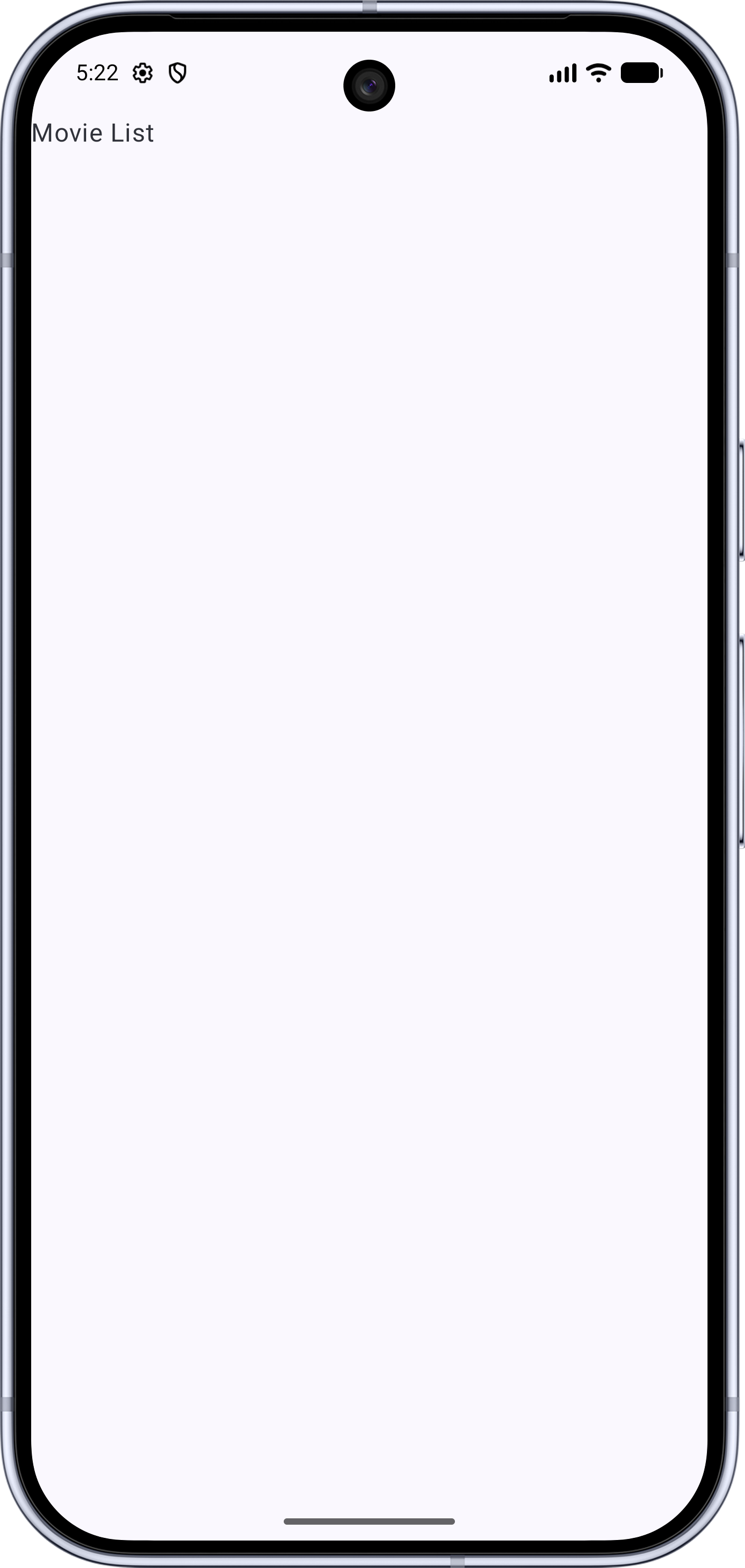
When run, if the device screen is fairly narrow (like a phone held in portrait orientation), you'll only see the Movie List screen:
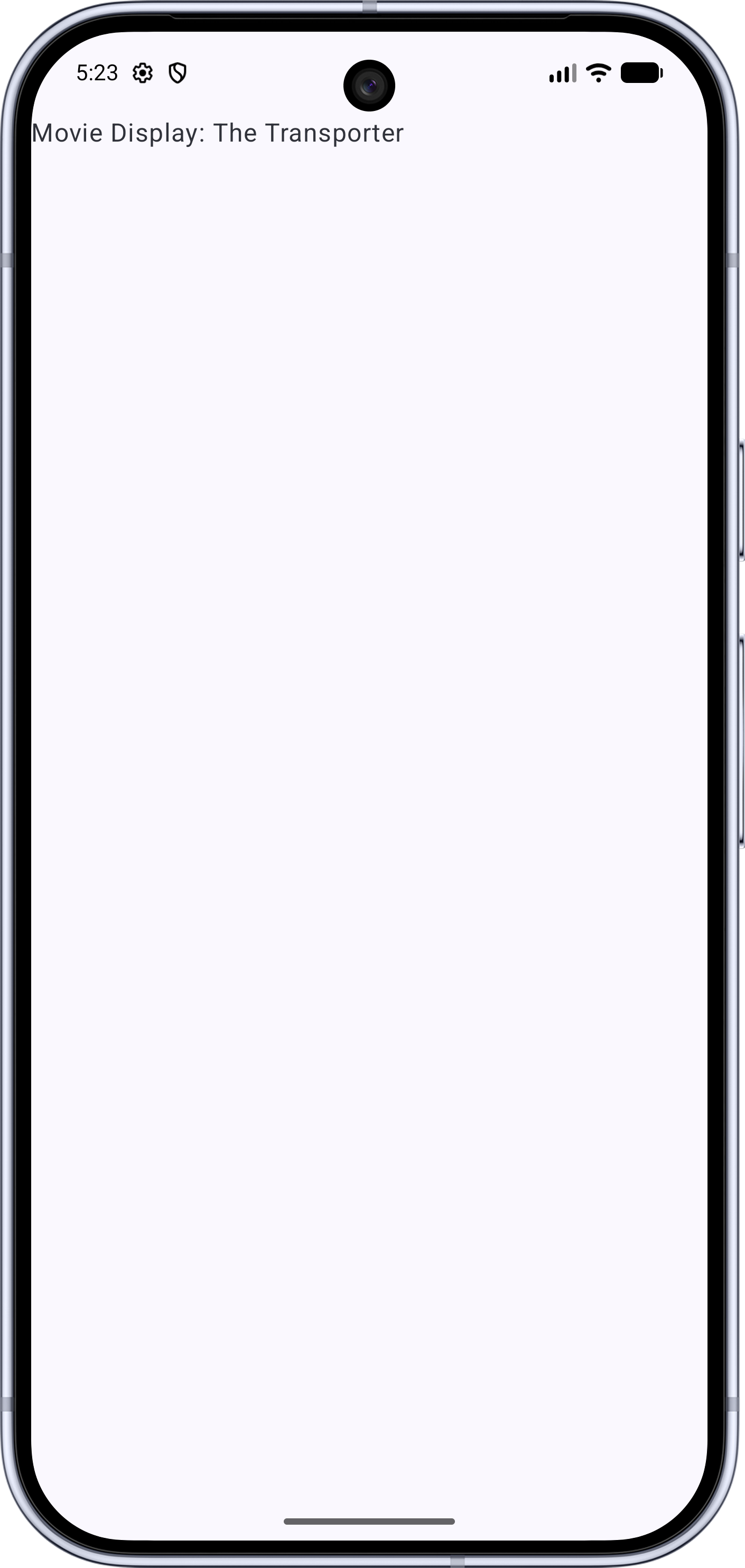
Clicking on the text "Movie List" takes us to the Movie Display screen:
If however, we run on a device with a wider screen (like a phone run in landscape orientation), we can see both list and detail screens side-by-side (after clicking the "Movie List" text)
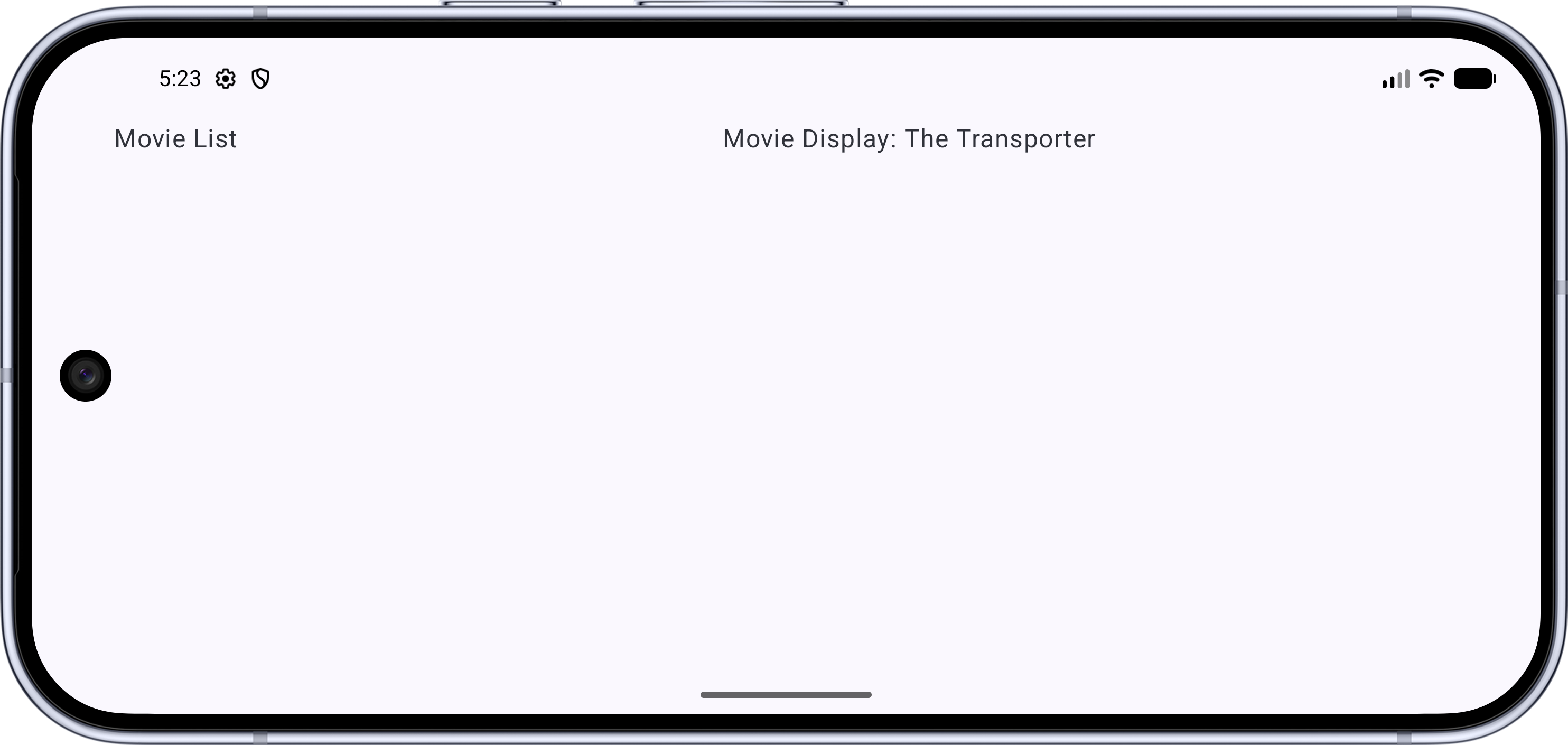
The NavDisplay manages which screens are shown.
All code changes
CHANGED: app/build.gradle.kts
plugins {
alias(libs.plugins.android.application)
alias(libs.plugins.kotlin.compose)
id("kotlin-parcelize")
}
android {
namespace = "com.androidbyexample.movies"
compileSdk {
version = release(37)
}
defaultConfig {
applicationId = "com.androidbyexample.movies"
minSdk = 24
targetSdk = 37
versionCode = 1
versionName = "1.0"
testInstrumentationRunner = "androidx.test.runner.AndroidJUnitRunner"
}
buildTypes {
release {
optimization {
enable = false
}
}
}
compileOptions {
sourceCompatibility = JavaVersion.VERSION_11
targetCompatibility = JavaVersion.VERSION_11
}
buildFeatures {
compose = true
}
}
dependencies {
implementation(platform(libs.androidx.compose.bom))
implementation(libs.androidx.activity.compose)
implementation(libs.androidx.compose.material3)
implementation(libs.androidx.compose.ui)
implementation(libs.androidx.compose.ui.graphics)
implementation(libs.androidx.compose.ui.tooling.preview)
implementation(libs.androidx.core.ktx)
implementation(libs.androidx.lifecycle.runtime.ktx)
testImplementation(libs.junit)
androidTestImplementation(platform(libs.androidx.compose.bom))
androidTestImplementation(libs.androidx.compose.ui.test.junit4)
androidTestImplementation(libs.androidx.espresso.core)
androidTestImplementation(libs.androidx.junit)
debugImplementation(libs.androidx.compose.ui.test.manifest)
debugImplementation(libs.androidx.compose.ui.tooling)
}
CHANGED: app/src/main/java/com/androidbyexample/movies/MainActivity.kt
package com.androidbyexample.movies

import android.os.Bundle
import androidx.activity.ComponentActivity
import androidx.activity.compose.setContent
import androidx.activity.enableEdgeToEdge
import androidx.activity.viewModels
import androidx.compose.foundation.layout.fillMaxSize
import androidx.compose.foundation.layout.padding
import androidx.compose.material3.Scaffold
//import androidx.compose.material3.Text
//import androidx.compose.runtime.Composable
import androidx.compose.ui.Modifier
//import androidx.compose.ui.tooling.preview.Preview
import com.androidbyexample.movies.screens.Ui
import com.androidbyexample.movies.ui.theme.MoviesTheme

class MainActivity : ComponentActivity() {
    private val viewModel by viewModels<MovieViewModel>()

    override fun onCreate(savedInstanceState: Bundle?) {
        super.onCreate(savedInstanceState)
        enableEdgeToEdge()
        setContent {
            MoviesTheme {
                Scaffold(modifier = Modifier.fillMaxSize()) { innerPadding ->
//                  Greeting(
//                      name = "Android",
//                      modifier = Modifier.padding(innerPadding)
                    Ui(
                        viewModel = viewModel,
                        modifier = Modifier.padding(innerPadding),
                    )
                }
            }
        }
    }
}
//
//@Composable
//fun Greeting(name: String, modifier: Modifier = Modifier) {
//  Text(
//      text = "Hello $name!",
//      modifier = modifier
//  )
//}
//
//@Preview(showBackground = true)
//@Composable
//fun GreetingPreview() {
//  MoviesTheme {
//      Greeting("Android")
//  }
//}
CHANGED: app/src/main/java/com/androidbyexample/movies/MovieViewModel.kt
package com.androidbyexample.movies

import androidx.lifecycle.SavedStateHandle
import androidx.lifecycle.ViewModel
import com.androidbyexample.movies.data.Movie
import com.androidbyexample.movies.screens.MovieList
import com.androidbyexample.movies.screens.Screen

//class MovieViewModel: ViewModel() {
class MovieViewModel(
    private val savedStateHandle: SavedStateHandle,
): ViewModel() {
    val movies: List<Movie> = listOf(
        Movie("The Transporter", "Jason Statham kicks a guy in the face"),
        Movie("Transporter 2", "Jason Statham kicks a bunch of guys in the face"),
        Movie("Hobbs and Shaw", "Cars, Explosions and Stuff"),
        Movie("Jumanji - Welcome to the Jungle", "The Rock smolders"),
    )

    val backStackFlow = savedStateHandle.getMutableStateFlow<List<Screen>>(
        key = "back_stack",
        initialValue = listOf(MovieList)
    )

    fun pushScreen(screen: Screen) {
        backStackFlow.value += screen
    }

    fun popScreen() {
        backStackFlow.value = backStackFlow.value.dropLast(1)
    }
}
ADDED: app/src/main/java/com/androidbyexample/movies/screens/MovieDisplayUi.kt
package com.androidbyexample.movies.screens

import androidx.compose.material3.Text
import androidx.compose.runtime.Composable
import androidx.compose.ui.Modifier
import com.androidbyexample.movies.data.Movie

@Composable
fun MovieDisplayUi(
    movie: Movie,
    modifier: Modifier = Modifier,
) {
    Text(
        text = "Movie Display: ${movie.title}",
        modifier = modifier,
    )
}
ADDED: app/src/main/java/com/androidbyexample/movies/screens/MovieListUi.kt
package com.androidbyexample.movies.screens

import androidx.compose.foundation.clickable
import androidx.compose.material3.Text
import androidx.compose.runtime.Composable
import androidx.compose.ui.Modifier
import com.androidbyexample.movies.data.Movie

@Composable
fun MovieListUi(
    movies: List<Movie>,
    modifier: Modifier = Modifier,
    onMovieClicked: (Movie) -> Unit,
) {
    Text(
        text = "Movie List",
        modifier = modifier.clickable {
            onMovieClicked(movies[0])
        }
    )
}
ADDED: app/src/main/java/com/androidbyexample/movies/screens/Screens.kt
package com.androidbyexample.movies.screens

import android.os.Parcelable
import com.androidbyexample.movies.data.Movie
import kotlinx.parcelize.Parcelize

sealed interface Screen: Parcelable

@Parcelize
data object MovieList: Screen

@Parcelize
data class MovieDisplay(val movie: Movie): Screen
ADDED: app/src/main/java/com/androidbyexample/movies/screens/Ui.kt
package com.androidbyexample.movies.screens

import androidx.compose.material3.adaptive.ExperimentalMaterial3AdaptiveApi
import androidx.compose.material3.adaptive.navigation3.ListDetailSceneStrategy
import androidx.compose.material3.adaptive.navigation3.rememberListDetailSceneStrategy
import androidx.compose.runtime.Composable
import androidx.compose.runtime.getValue
import androidx.compose.ui.Modifier
import androidx.lifecycle.compose.collectAsStateWithLifecycle
import androidx.navigation3.runtime.entryProvider
import androidx.navigation3.ui.NavDisplay
import com.androidbyexample.movies.MovieViewModel

@OptIn(ExperimentalMaterial3AdaptiveApi::class)
@Composable
fun Ui(
    viewModel: MovieViewModel,
    modifier: Modifier = Modifier,
) {
    val listDetailStrategy = rememberListDetailSceneStrategy<Screen>()

    val backStack by viewModel.backStackFlow.collectAsStateWithLifecycle(listOf(MovieList))

    NavDisplay(
        backStack = backStack,
        onBack = viewModel::popScreen,
        sceneStrategies = listOf(listDetailStrategy),
        entryProvider = entryProvider {
            entry<MovieList>(
                metadata = ListDetailSceneStrategy.listPane()
            ) {
                MovieListUi(
                    movies = viewModel.movies,
                    onMovieClicked = { movie ->
                        viewModel.pushScreen(MovieDisplay(movie))
                    },
                    modifier = modifier,
                )
            }
            entry<MovieDisplay>(
                metadata = ListDetailSceneStrategy.detailPane()
            ) { key ->
                MovieDisplayUi(
                    movie = key.movie,
                    modifier = modifier,
                )
            }
        }
    )
}
CHANGED: gradle/libs.versions.toml
[versions]
agp = "9.4.0"
coreKtx = "1.19.0"
junit = "4.13.2"
junitVersion = "1.3.0"
espressoCore = "3.7.0"
lifecycleRuntimeKtx = "2.11.0"
activityCompose = "1.13.0"
kotlin = "2.4.10"
composeBom = "2026.08.00"
navigation = "1.1.7"
material3AdaptiveNav3 = "1.3.0"

[libraries]
androidx-core-ktx = { group = "androidx.core", name = "core-ktx", version.ref = "coreKtx" }
junit = { group = "junit", name = "junit", version.ref = "junit" }
androidx-junit = { group = "androidx.test.ext", name = "junit", version.ref = "junitVersion" }
androidx-espresso-core = { group = "androidx.test.espresso", name = "espresso-core", version.ref = "espressoCore" }
androidx-lifecycle-runtime-ktx = { group = "androidx.lifecycle", name = "lifecycle-runtime-ktx", version.ref = "lifecycleRuntimeKtx" }
androidx-activity-compose = { group = "androidx.activity", name = "activity-compose", version.ref = "activityCompose" }
androidx-compose-bom = { group = "androidx.compose", name = "compose-bom", version.ref = "composeBom" }
androidx-compose-ui = { group = "androidx.compose.ui", name = "ui" }
androidx-compose-ui-graphics = { group = "androidx.compose.ui", name = "ui-graphics" }
androidx-compose-ui-tooling = { group = "androidx.compose.ui", name = "ui-tooling" }
androidx-compose-ui-tooling-preview = { group = "androidx.compose.ui", name = "ui-tooling-preview" }
androidx-compose-ui-test-manifest = { group = "androidx.compose.ui", name = "ui-test-manifest" }
androidx-compose-ui-test-junit4 = { group = "androidx.compose.ui", name = "ui-test-junit4" }
androidx-compose-material3 = { group = "androidx.compose.material3", name = "material3" }

androidx-navigation3-runtime = { module = "androidx.navigation3:navigation3-runtime", version.ref = "navigation" }
androidx-navigation3-ui = { module = "androidx.navigation3:navigation3-ui", version.ref = "navigation" }
androidx-material3-adaptive-navigation3 = { group = "androidx.compose.material3.adaptive", name = "adaptive-navigation3", version.ref = "material3AdaptiveNav3" }

[plugins]
android-application = { id = "com.android.application", version.ref = "agp" }
kotlin-compose = { id = "org.jetbrains.kotlin.plugin.compose", version.ref = "kotlin" }